Where do I find my Google Analytics 4 details?
GA4 needs the web stream's Measurement ID, plus a Measurement Protocol API secret if you want purchases sent server-side.
- Measurement ID G-XXXXXXXXXX
- API secret a ~22-character string
Screenshots are from a live account. Account names, IDs, tokens and email addresses are blanked out — yours will show real values in those places.
-
Open Admin → Data collection and modification → Data streams
Pick your property first, then Admin in the left rail. Data streams is nested one level deeper than it used to be — under Data collection and modification — which is where most people give up looking for it.
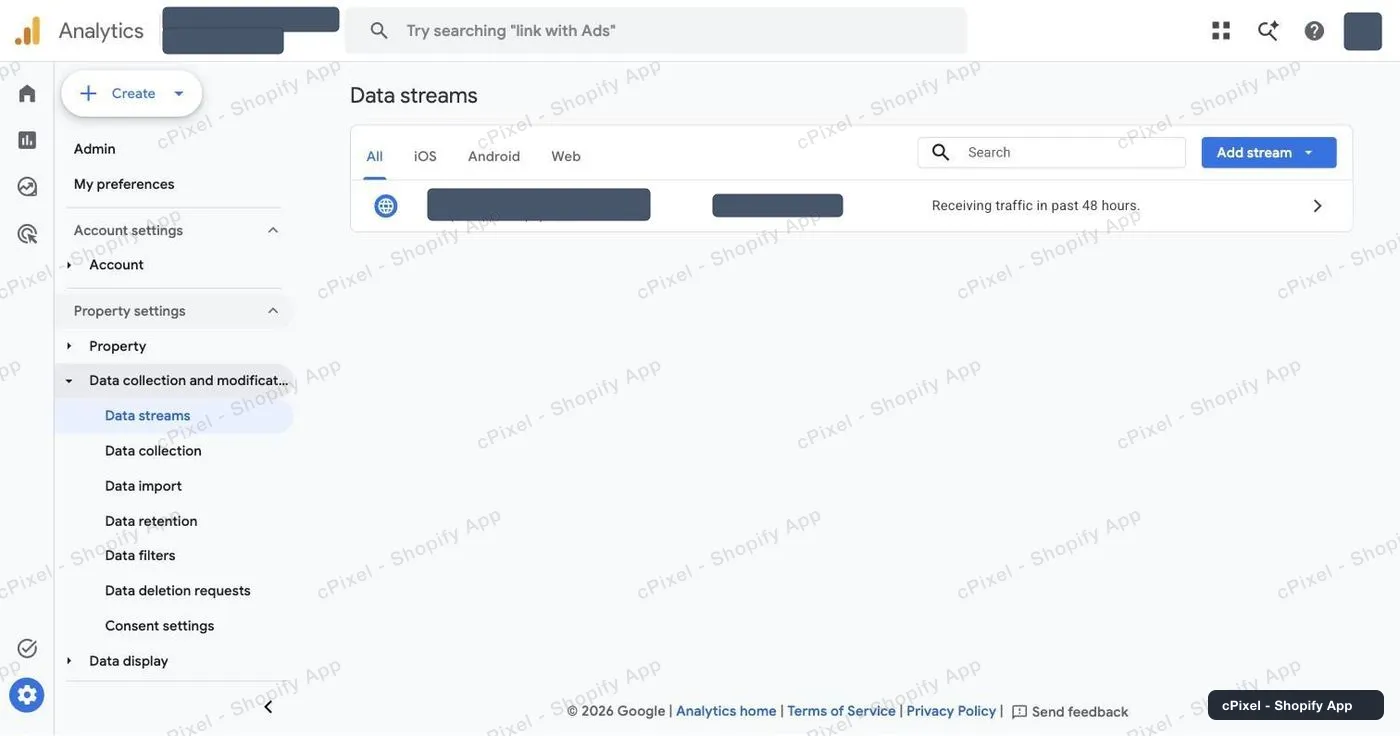
Data streams, with the web stream for the store listed. -
Open the web stream and copy the Measurement ID
Click the stream row. Measurement ID is at the top right of Stream details and looks like
G-followed by ten characters. The copy icon beside it is easier than selecting the text.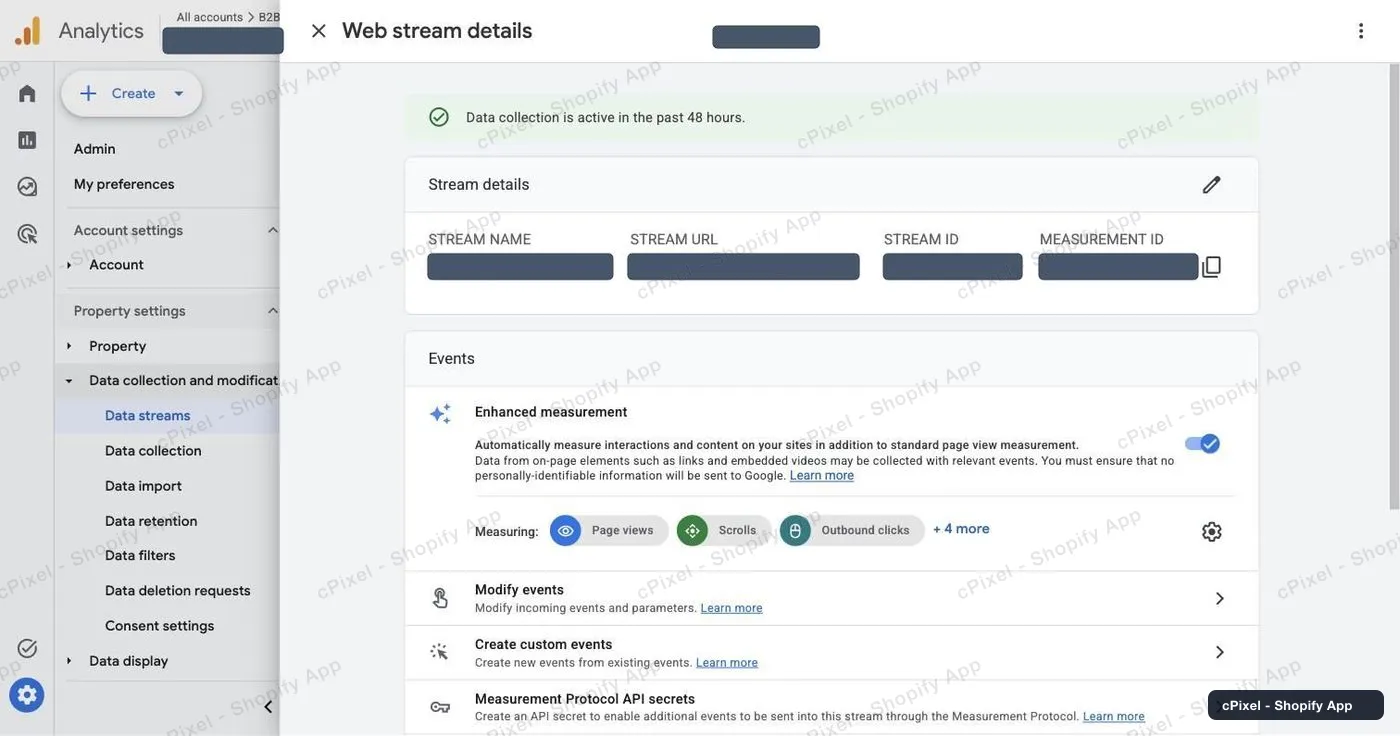
Stream details. Measurement ID is the right-hand column. -
Scroll down to Measurement Protocol API secrets
It is the last row of the Events block on the same panel. Open it to see the secrets that already exist for this stream — you can reuse one instead of creating another.
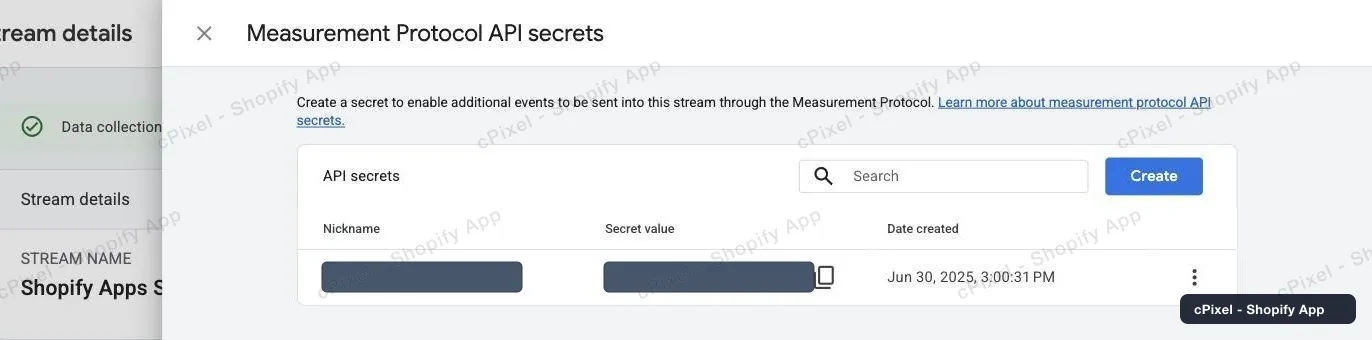
Existing secrets are listed with their value and creation date. -
Create a secret, then paste both into cPixel
Create, give it a nickname you will recognise later (“cPixel” does fine), and copy the secret value. Paste it and the Measurement ID into the cPixel connect form.
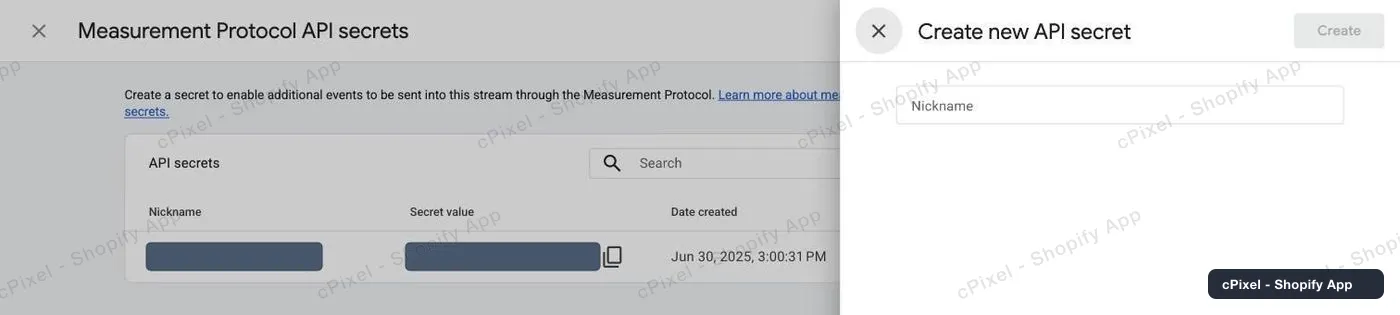
The create panel asks only for a nickname.
GA4 never tells you the secret is wrong
The Measurement Protocol returns success for a bad API secret and silently drops the event. There is no error anywhere in GA4 to find later. Copy it carefully, and confirm with a real order rather than assuming it worked.
Good to know
- Purchases go server-side. Every other GA4 event is browser-side by design — sending it from a server as well would double it in your reports, because the Measurement Protocol can only deduplicate purchases.
- When an ad blocker stops one of those browser events from leaving the shopper's device, cPixel sends that one event from our servers instead. Only that one: an event that reached GA4 in the browser is never re-sent, so nothing is counted twice. Recovered events are marked as such in Live.
- cPixel cannot tell when GA4 itself refuses an event. The browser sends these without reading a reply, by design, so there is nothing to read back — only "the request never left the device" is detectable.
- A server purchase needs the visitor's _ga cookie. Without it cPixel skips the purchase rather than sending it unattributed and polluting your channel reports.
- The Measurement ID (G-…) is not the Stream ID (a plain number) and not the property ID. cPixel wants the G- one.
Server-side API token Used by cPixel today
You already have it — the Measurement Protocol API secret from step 4 is the server-side credential. cPixel sends GA4 purchases server-side with it today; every other GA4 event stays browser-side by design, and is only sent from our servers when the shopper's browser could not send it at all. Without the secret, both of those stop.
Checking it worked
On a paid plan, place a test order and watch GA4 Realtime. Free-plan test sends validate the payload only and never reach your reports.
Google Analytics 4's own documentation
What cPixel is
cPixel is a Shopify app that tracks your store's events and reports them to your ad platforms — from the shopper's browser and from our servers, through each platform's Conversions API. Browser tracking is free and unmetered on every plan; server-side sending is what the paid tiers add, and it is what keeps conversions arriving when a browser blocks the pixel, drops the tag, or never runs it at all.
- One event ID across both legs. Every purchase is sent with the same deterministic id from the browser and from the server, so the platform keeps one conversion instead of counting it twice.
- A live view of every server send. Open a debug session and watch each event as it goes out: the payload, the platform's response, whether it deduplicated, and exactly which match parameters were present. It is on the free plan too — you can see what cPixel sends before you pay for anything.
- Every platform on every plan. Plans differ in one field only: how many orders a month are included. No feature, platform or account limit is tied to price, and up to 10 accounts per platform are available on all of them.
- Nothing to install into your theme. Tracking rides Shopify's own web pixel and app-embed surfaces — no script tags, no theme file edits, and a clean uninstall.
Priced on monthly orders, nothing else — not traffic, not your Shopify plan, not the number of platforms you connect. Free installs get 7 days with no cap at all, and on the paid tiers server-side sending is never switched off for going over.