Where do I find my Pinterest details?
Pinterest needs three values: the Tag ID, your ad account ID, and a Conversions API access token. cPixel fires the storefront tag through the theme app embed and sends checkout and purchase events server-side.
- Tag ID about 13 digits
- Ad account ID a similar-length number, and NOT the Tag ID
- Conversions API access token generated under Conversions → Conversions API
Screenshots are from a live account. Account names, IDs, tokens and email addresses are blanked out — yours will show real values in those places.
-
Open the menu and choose Conversions
Click the hamburger icon beside “Campaign manager” at the top left. Conversions is in the last column, under Manage business — not under Ads, and not anywhere in the top bar.
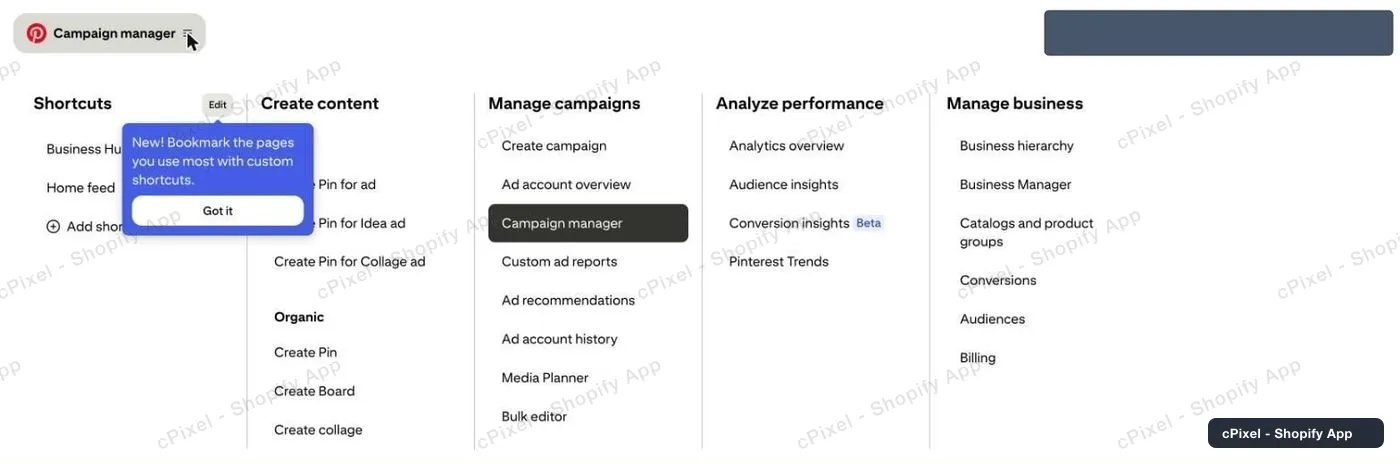
The mega-menu. Conversions is the fifth item under Manage business. -
Open Pinterest tag → Tag manager
The Conversions page has its own left rail. Pinterest tag → Tag manager is the one you want; *Conversions API* and *Conversion upload* below it are different products that cPixel does not use.
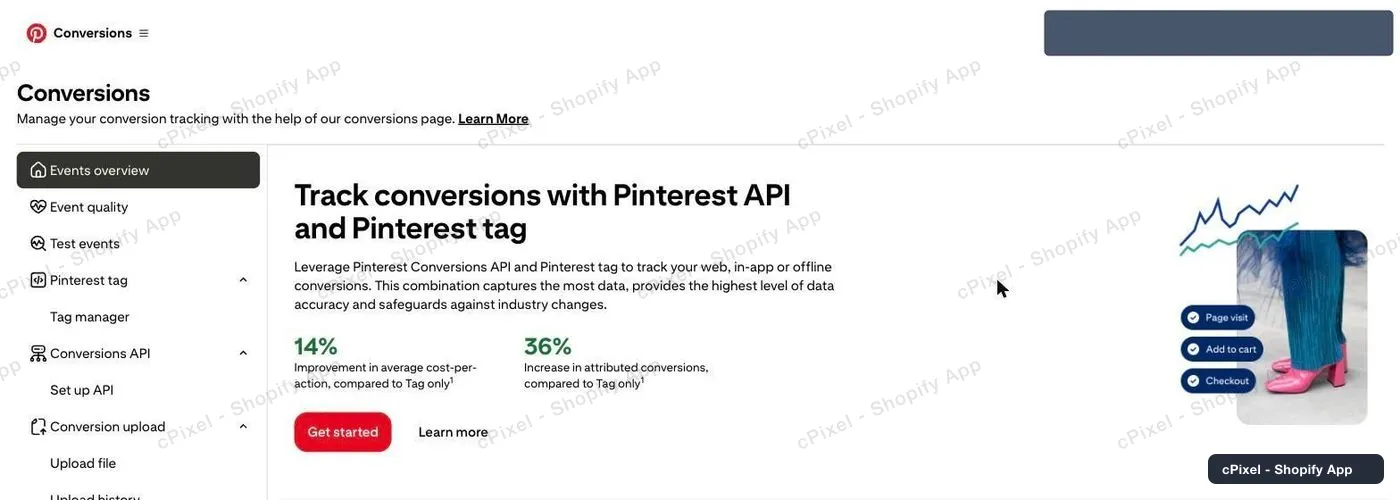
Conversions, with its own navigation down the left. -
Click “Install the Pinterest tag”
If you have never set a tag up, Tag manager shows a promo panel rather than a list. Click Install the Pinterest tag. You are not committing to anything — the next screen is where the ID appears.
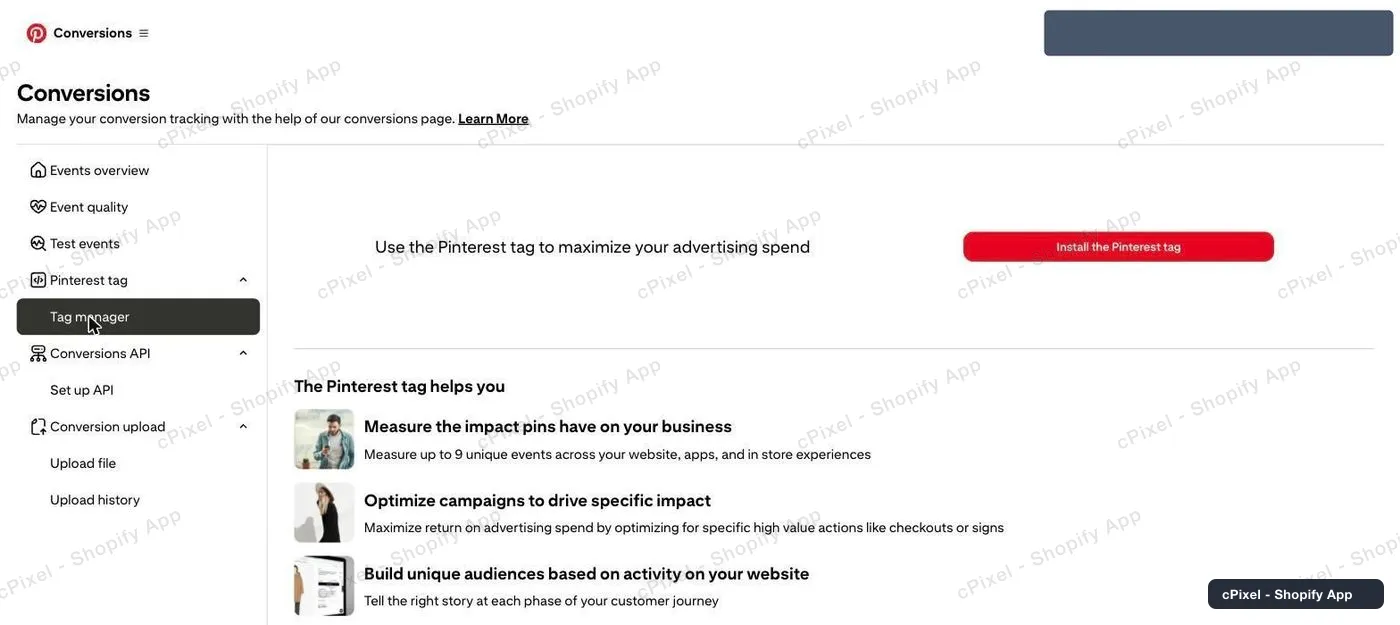
The empty state. The button is the way forward even if you only want the ID. -
Read the Tag ID from the header
The next page is titled Connect a data source, and the Tag ID is printed at the top right — about 13 digits — before you fill in anything at all. Copy it into cPixel; you can close the page without completing the installation, because cPixel is what installs the tag.

Tag ID, top right. Nothing on this page needs filling in for cPixel.
Three different Pinterest numbers look alike
cPixel needs both the Tag ID and the ad account ID, and they are different numbers of similar length — so putting one in the other's box is the mistake to watch for. The Tag ID (~13 digits) is on the *Connect a data source* page and is what the storefront tag fires with; the ad account ID sits in the address bar while you are in Ads Manager, and it is what the Conversions API endpoint is addressed by. Neither is a Pin ID — the 18–19 digit number shown against a creative in the Select Pins dialog, which identifies an image and will never record a conversion.
Good to know
- Tag manager can keep showing the empty promo panel even after your tag exists — it only lists a tag once events arrive. That is not a sign the ID failed to save; reopening “Install the Pinterest tag” shows the same Tag ID.
- Two legs, covering different pages: the storefront tag runs through the theme app embed, while checkout and purchase — which a theme can never reach — go server-side through the Conversions API. Purchases ARE tracked.
- Nothing sends until the cPixel app embed is switched on in your theme. The cPixel Home page tells you if it isn't.
- Pinterest's own Tag Helper browser extension is a quick second opinion if a live session shows nothing.
Server-side API token Used by cPixel today
cPixel sends Pinterest server-side as well as from the storefront, so this token is required, not optional. Collect your ad account ID while you are here too — the Conversions API endpoint is addressed by it rather than by the Tag ID, and the warning above explains how to tell the two apart.
- In Conversions, open Conversions API → Set up API in the left rail.
- Scroll to Generate conversion access token and click Generate new token.
- Copy it immediately. Pinterest says it "does not store personal tokens" — the same shown-once rule as Meta.
- One token covers multiple ad accounts under the same user ID, so you do not need one per account.
Checking it worked
Start a live session in cPixel and browse your storefront, or use Pinterest's Tag Helper extension.
Pinterest's own documentation
What cPixel is
cPixel is a Shopify app that tracks your store's events and reports them to your ad platforms — from the shopper's browser and from our servers, through each platform's Conversions API. Browser tracking is free and unmetered on every plan; server-side sending is what the paid tiers add, and it is what keeps conversions arriving when a browser blocks the pixel, drops the tag, or never runs it at all.
- One event ID across both legs. Every purchase is sent with the same deterministic id from the browser and from the server, so the platform keeps one conversion instead of counting it twice.
- A live view of every server send. Open a debug session and watch each event as it goes out: the payload, the platform's response, whether it deduplicated, and exactly which match parameters were present. It is on the free plan too — you can see what cPixel sends before you pay for anything.
- Every platform on every plan. Plans differ in one field only: how many orders a month are included. No feature, platform or account limit is tied to price, and up to 10 accounts per platform are available on all of them.
- Nothing to install into your theme. Tracking rides Shopify's own web pixel and app-embed surfaces — no script tags, no theme file edits, and a clean uninstall.
Priced on monthly orders, nothing else — not traffic, not your Shopify plan, not the number of platforms you connect. Free installs get 7 days with no cap at all, and on the paid tiers server-side sending is never switched off for going over.